Chapter 1: Building a Sokoban Puzzle Game (Crates, Goals and Undo)
This chapter focuses on building a complete Sokoban-style puzzle game using Godot 4.7. You will guide a character around a grid and push crates onto their matching goal cells. Although the controls are simple, the puzzles require careful planning because a crate can become trapped against a wall.
Throughout this chapter, you will practise representing a game board as data, moving the player between cells, and checking whether a proposed move is allowed. You will create walls, floors, goals and crates, then connect the game rules to the objects shown on screen.
You will also develop features that make the puzzle more enjoyable to play, including an undo action, a restart option and feedback when every crate has reached a goal. These systems will help you understand how to manage a changing game state.
As the project progresses, you will load authored puzzle layouts from JSON data and provide ways to select and complete different levels. Keeping level information separate from the movement rules will make it easier to extend the game later.
By the end of this chapter, you will have built a playable Sokoban-style puzzle and gained practical experience with grids, validation, state changes, level data and user-interface feedback.
After completing this chapter, you should be able to:
• Explain the rules and goals of a Sokoban-style puzzle.
• Represent walls, floors, goals, crates, and the player in a grid.
• Implement cell-by-cell movement and reject blocked moves.
• Push crates only when the destination cell is available.
• Detect when all crates occupy their goals.
• Implement undo and restart controls.
• Load authored puzzle levels from JSON data.
• Add level selection and completion feedback.
Chapter Introduction — Goals, Prerequisites and Finished Result
In this chapter, you will build a complete Sokoban-style puzzle game in Godot 4.7. The objective is simple: move your character around a grid and push every crate onto a goal. The challenge comes from planning your route, because a crate cannot be pulled back once it has been pushed into a corner.
You will start with a playable board and gradually add player movement, walls, crate pushing, goal detection, an undo system, restart controls, and a way to load authored puzzle levels. The result will be a standalone game with clear rules and feedback when a level is completed.
Before you begin, install Godot 4.7 and make sure you can create and run a new project. You do not need to complete any other chapter first. As you work, test the project after each major change, especially the rules that prevent invalid moves.
Create the Sokoban Project and First Level
In this first section, we will set up the Godot project and a first playable level. This gives us the foundation that every later puzzle feature will use, so we can add the remaining systems step by step.
Let’s begin by creating a new Godot project and preparing the scene that will eventually display our Sokoban puzzle. We will also add a simple heading and an empty area for the board. The puzzle rules and grid cells will be introduced in the next sections.
Create a New Godot Project
First, we need a new project in which to create our game. Start Godot 4.7 to display the Project Manager, and then follow these steps:
• In the Project Manager, click New Project.
• In the Project Name field, enter SokobanGame.
• For Project Path, select an empty folder in which you want to save your game. If Godot offers to create a folder with the project name, accept that option.
• Select the Compatibility renderer. This is suitable for our simple 2D puzzle game.
• Click Create & Edit to create the project and open the Godot editor.
Godot now displays an empty project. We will configure the game window before adding any content.
Configure the Game Window
A fixed starting window size will help us organise the puzzle interface. We will use a viewport measuring 1000 pixels wide and 760 pixels high.
• From the top menu, select Project > Project Settings.
• In the Project Settings window, open Display > Window.
• Under Size, set Viewport Width to 1000 and Viewport Height to 760.
• Under Stretch, set Mode to canvas_items (shown as Canvas Items in some editor versions).
• Close Project Settings. Godot saves these project settings automatically.
Create the Main Scene
Godot uses scenes to organise the objects displayed in a game. Our first scene will contain the main interface. We will create a Control node as its root because it is designed for arranging interface elements.
• In the Scene panel, click Other Node to create a new root node.
• Search for Control, select it, and click Create.
• In the Scene Tree, right-click the Control node, choose Rename, and enter Main.
• Select Main. From the toolbar above the 2D viewport, open Layout and choose Full Rect. This makes the root fill the available interface area.
• Press Ctrl+S (Cmd+S on macOS) to save the scene. In the save dialog, create a folder called scenes, open it, and save the scene as main.tscn.
We have now created the Main scene. Next, we will add a background and a small interface that gives the player a place to view the puzzle.
Add the Background
• Select Main in the Scene Tree. Click the Add Child Node button (the plus sign above the tree).
• Search for ColorRect, select it, and click Create.
• Rename the new node Background.
• With Background selected, choose Layout > Full Rect so that it fills the window.
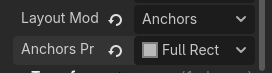
• In the Inspector, find the Color property and choose a dark blue-grey colour for the background.
• In the Inspector, under Mouse > Filter, select Ignore. This will allow interface controls added later to receive mouse input.
Create the Interface Layout
We will now create a vertical layout for a title, a short instruction and the area in which the board will appear. A VBoxContainer automatically arranges its children from top to bottom.
• Select Main, add a VBoxContainer child, and rename it Interface.
• Select Interface and choose Layout > Full Rect.
• With Interface selected, add a Label child and rename it Heading.
• Select Heading. In the Inspector, set Text to Sokoban — Puzzle Workshop.
• Select Interface again, add another Label child, and rename it Instructions.
• Select Instructions. Set Text to Push each crate onto a goal to solve the puzzle.
• Select Interface again, add a PanelContainer child, and rename it BoardPanel.
• Select BoardPanel. In the Inspector, set Custom Minimum Size to X = 560 and Y = 480. This creates a visible area for the puzzle board.
• Select BoardPanel, add a GridContainer child, and rename it BoardGrid.
The BoardGrid is currently empty. In the next section, we will populate it with grid cells and give each cell a visual appearance. At this stage, there is no need to add any scripts.
Save and Check the Result
• Press Ctrl+S (Cmd+S on macOS) to save your changes to main.tscn.
• Click Run Project (F5). If Godot asks you to choose the main scene, click Select Current to use the Main scene.
A game window should open with your chosen background colour, the Sokoban title, the instruction label and an empty panel reserved for the board. The game is not interactive yet; that is expected because we have only created its initial interface.
You have now created the Godot project and the first scene for your Sokoban game. In the next section, we will turn the empty board area into a grid of visible puzzle cells.
We now have the foundation that every later puzzle feature will use. Try the feature in the editor and check that it behaves as expected before moving on. In the next section, we will represent the board as a grid and distinguish walls, floors and goals.
Build the Board Model and Render Walls, Floors and Goals
In the previous section, we created the main scene and left an empty space for the puzzle board. We can now turn that space into a grid of coloured cells, so players can recognise the walls, floors and goals before we introduce movement.
In this section, we will describe a small Sokoban level using rows of characters, then write a script that draws the matching cells inside BoardGrid. Keeping the layout as data will make it much easier to add the puzzle rules later.
Prepare the Grid Container
Our board will have seven columns and seven rows. The GridContainer we created earlier can arrange cells automatically, provided we tell it how many columns to use.
• In the Scene panel, open the Main scene if it is not already open. In the Scene Tree, expand Main, Interface and BoardPanel, then select BoardGrid (a GridContainer node).
• In the Inspector, find the Columns property and set it to 7. This makes Godot start a new row after every seventh cell.
We will create the individual cells through code rather than adding 49 nodes by hand. That way, changing the level later will be much easier.
Create the Board Layout
Think of the board as a small map. Each character represents one cell: # means wall, a space means floor and . means goal. The visual colours will be chosen by the script, so the board data stays simple.
• In the FileSystem panel, right-click res://, choose New Folder, and name it scripts. Then select Main in the Scene Tree, click Attach Script, set the path to res://scripts/main.gd, and click Create. This creates the script in the new folder.
• Switch to the ScriptScript workspace at the top of the editor and open main.gd. Replace the default generated code completely with the following opening lines:
extends Control

const BOARD = [
    "#######",
    "#     #",
    "# .   #",
    "#     #",
    "#   . #",
    "#     #",
    "#######"
]
How this code works:
• extends Control means the script belongs to a Control node, which is the type of our MainMain scene root.
• BOARD is a constant: a value that will not change while the game is running. It contains seven text strings, one for each row.
The # characters form the outer walls, spaces represent walkable floor, and the two dots mark goal positions. Every row has exactly seven characters, matching the seven columns we set earlier.
We now have a complete board layout stored in memory, but nothing is visible yet. Next, we will turn those characters into coloured rectangles.
Draw the Board Cells
We will use ColorRect nodes (simple coloured rectangles) for the first version of the board. They are ideal for checking that our grid is correct before adding more detailed graphics.
• In main.gdmain.gd, place the cursor directly below the closing ] of BOARD and add the following function. Leave one empty line between the constant and the function:
func _ready() -> void:
    draw_board()
How this code works:
• _ready() is a Godot function that runs when the Main scene is ready. We use it to begin drawing the level automatically.
• draw_board() will be our own function. We will define it immediately below, so the call has a matching function before we run the game.
Now we will create the function that visits each row and each cell.
• Still in main.gd, below _ready(), add this function header and its first lines:
func draw_board() -> void:
    var grid = $Interface/BoardPanel/BoardGrid
    for row in BOARD:
        for symbol in row:
            var cell = ColorRect.new()
            cell.custom_minimum_size = Vector2(52, 52)
            grid.add_child(cell)
How this code works:
• grid stores a reference to the BoardGrid node that already exists in the Main scene. The $ path follows the exact parent-child hierarchy created in the previous section.
• The first for loop visits every row of BOARD. The second loop visits each character in that row, working from left to right.
• ColorRect.new() creates one coloured cell. Vector2(52, 52) gives it a minimum width and height of 52 pixels, while add_child() places it inside BoardGrid.
This function now creates 49 cells. We still need to assign their colours so walls, floors and goals look different.
• In main.gd, inside draw_board(), immediately after grid.add_child(cell), add the following lines at the same indentation level as that line:
            if symbol == "#":
                cell.color = Color("#46556b")
            elif symbol == ".":
                cell.color = Color("#e6bd58")
            else:
                cell.color = Color("#cbd5df")
How this code works:
• The if statement checks whether the character is #. If so, the cell becomes blue-grey, making the walls easy to spot.
• elif checks for a dot, which represents a goal. These cells become gold, so they stand out from the floor.
• else handles the remaining characters, which are spaces in this layout. Those cells become light grey floor tiles.
Each character now produces a visible tile. The board layout and its appearance are separate: we can move a goal by changing a dot in BOARD without changing the drawing rules.
Save and Check the Board
• Press Ctrl+S (Cmd+S on macOS) to save main.gd and the Main scene. Check that the script editor shows no red error messages.
• Click Run Project or press F5 to start the game. The main scene should appear with the title, instruction text and a 7 × 7 board.
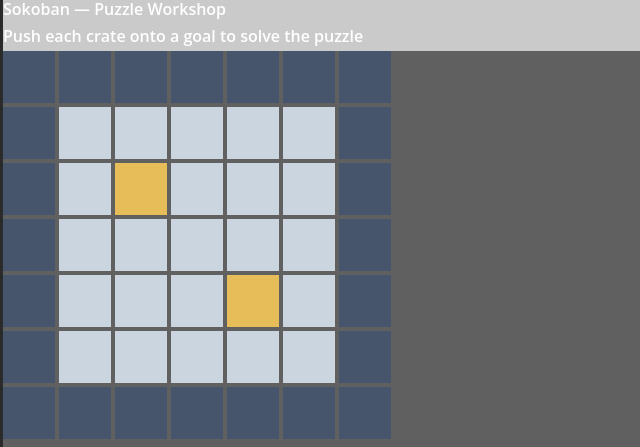
You should see a complete border of blue-grey wall tiles, light grey floor tiles inside it and two gold goal tiles. The board will not respond to keyboard input yet; we will add the player and movement in the next sections.
If the grid looks empty, check that the script is attached to Main and that the node path $Interface/BoardPanel/BoardGrid matches your Scene Tree. If cells appear in the wrong number of columns, check that BoardGrid has Columns set to 7.
We now have a board represented by data and displayed as individual cells. In the next section, we will add the player and crates at their starting positions, turning this static layout into the foundation of a real Sokoban puzzle.
Place the Player and Crates
Our board now shows walls, floors and two goal cells. However, a Sokoban puzzle also needs a character to control and crates to push. We will add their starting positions to the board data and draw them in different colours. The crates will stay still for now; we will introduce pushing later.
Mark the Starting Positions
We will use @ for the player and $ for a crate. Each symbol occupies one grid cell, just like the wall and goal symbols we created earlier. Keeping these positions in the board data means that we can change a level without dragging objects around manually.
• Open the Script workspace at the top of Godot and select main.gd. Find the existing BOARD constant near the top of the script. Replace the entire constant, from const BOARD = [ through its closing ], with the following seven rows:
const BOARD = [
    "#######",
    "#     #",
    "# .   #",
    "#  $  #",
    "#  @. #",
    "#     #",
    "#######"
]
How this code works:
• Each text string represents one row. Every row contains exactly seven characters, including spaces. The # characters remain walls, spaces remain floor, and the two dots remain goals.
• The $ symbol identifies the starting crate, while @ identifies the player. We have placed both on ordinary floor cells, so they can be drawn over the board without changing the surrounding walls.
The layout now describes everything we need to show the first player and crate. Next, we will store their locations separately so that we can move them later.
Store the Player and Crate Positions
• In main.gd, immediately below the closing ] of BOARD and above func _ready(), add these two variables:
var player_pos := Vector2i.ZERO
var crate_positions: Array[Vector2i] = []
How this code works:
• player_pos stores the player’s column and row using Vector2i, a Godot type that holds two whole numbers. The first number is the column (x); the second is the row (y).
• crate_positions stores the positions of the crates. We use an array so we can add more crates in later levels.
• Still in main.gd, find the existing _ready() function. Replace its previous two lines, func _ready() -> void: and draw_board(), with the following:
func _ready() -> void:
    read_starting_positions()
    draw_board()
How this code works:
• _ready() runs when the scene opens. We first read the player and crate locations, then draw the board. This order matters because the drawing function needs those positions.
• Immediately below _ready() and before draw_board(), add this new function:
func read_starting_positions() -> void:
    crate_positions.clear()
    for y in range(BOARD.size()):
        for x in range(BOARD[y].length()):
            var symbol :String = BOARD[y].substr(x, 1)
            if symbol == "@":
                player_pos = Vector2i(x, y)
            elif symbol == "$":
                crate_positions.append(Vector2i(x, y))
How this code works:
• clear() empties the crate list before reading the layout. This prevents repeated entries if we later reload a level.
• The outer loop visits each row (y); the inner loop visits each column (x). substr(x, 1) reads one character at that location.
• When the character is @, we remember the player position. When it is $, we add the crate position to the array.
Display the New Objects
We will keep the coloured rectangles from the previous section. We only need to adjust the drawing function so that it knows the coordinates of each cell and can display the player and crates on top of the floor.
• In main.gd, locate the entire existing draw_board() function. Replace it, from func draw_board() -> void: to the end of its final else branch, with the following first block:
func draw_board() -> void:
    var grid = $Interface/BoardPanel/BoardGrid
    for y in range(BOARD.size()):
        for x in range(BOARD[y].length()):
            var symbol :String = BOARD[y].substr(x, 1)
            var position := Vector2i(x, y)
            var cell := ColorRect.new()
            cell.custom_minimum_size = Vector2(52, 52)
            grid.add_child(cell)
How this code works:
• The grid variable points to the BoardGrid node already created in our scene. The two loops visit all 49 positions in row order.
• We keep the character and the coordinates for each cell. ColorRect.new() creates the visual square and add_child() puts it inside the GridContainer.
• In the same draw_board() function, directly below grid.add_child(cell), add the following colour selection code. Keep it indented inside the inner for loop:
            if symbol == "#":
                cell.color = Color("#46556b")
            elif symbol == ".":
                cell.color = Color("#e6bd58")
            else:
                cell.color = Color("#cbd5df")
How this code works:
• The existing colours are preserved: blue-grey for walls, gold for goals and light grey for other cells. For now, the @ and $ cells use the floor colour as their base.
• Still inside draw_board(), immediately below the colour selection block and at the same indentation as its if statement, add the following lines:
            if crate_positions.has(position):
                cell.color = Color("#b77c35")
            if position == player_pos:
                cell.color = Color("#2764a8")
How this code works:
• has(position) checks whether a crate occupies the current cell. If it does, we colour that cell orange-brown.
• The second condition checks whether this is the player’s location. We colour the player cell blue, making it easy to identify.
Save and Check the Starting Layout
• Press Ctrl+S to save main.gd. Press F5 to run the project. You should see the same seven-by-seven board, with a blue player cell near the bottom, one orange-brown crate above it, and two gold goal cells.
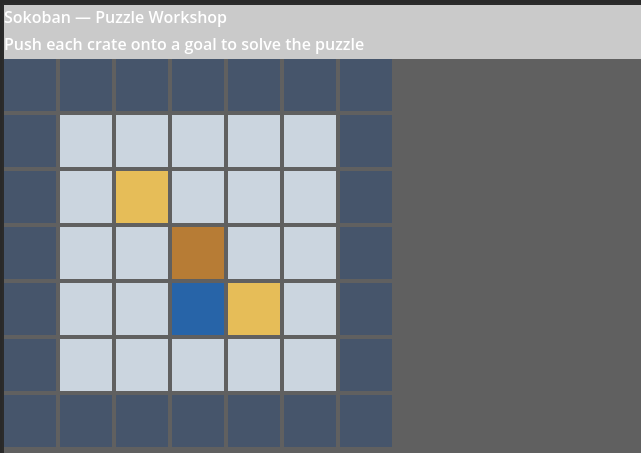
If the player or crate is missing, check that you typed @ and $ in the BOARD constant and that each row still has seven characters. The characters are position markers; they do not appear as printed symbols in this first visual version.
We now have a visible player and crate. In the next section, we will let the player move from one grid cell to another using the keyboard.
Move the Player One Cell at a Time
Our player and crate now have their own starting positions, and the board can draw them. The next step is to make the player respond to the keyboard. We will use the arrow keys and move exactly one cell per key press, rather than sliding smoothly across the screen.
Listen for Keyboard Input
Godot can send key events to a scene script. We will use _unhandled_key_input(), a built-in function that receives keyboard events that have not already been handled by interface controls.
• Open main.gd in the Script workspace. Below the completed draw_board() function, add this new function header and its first checks:
func _unhandled_key_input(event: InputEvent) -> void:
    if not event is InputEventKey:
        return
    if not event.pressed or event.echo:
        return
How this code works:
• InputEventKey identifies keyboard events. The first condition ignores other input, such as mouse movement.
• pressed makes sure the key was pushed down, and echo ignores repeated events caused by holding a key. This gives us one step for each deliberate key press.
• Inside _unhandled_key_input(), directly below the second return statement, add the following lines, indented at the same level as the two if statements:
    var direction := Vector2i.ZERO
    match event.keycode:
        KEY_UP: direction = Vector2i.UP
        KEY_DOWN: direction = Vector2i.DOWN
        KEY_LEFT: direction = Vector2i.LEFT
        KEY_RIGHT: direction = Vector2i.RIGHT
How this code works:
• direction starts at Vector2i.ZERO, meaning no movement. The match statement compares the pressed key with the four arrow keys.
• Each arrow produces a one-cell direction. For example, Vector2i.RIGHT adds one to the column, while Vector2i.UP subtracts one from the row.
Update the Player Position
Now that we can recognise the direction, we can update the player’s coordinates. For this first movement version, we will keep the player inside the seven-by-seven board. In the following section, we will also prevent it from entering walls.
• Still inside _unhandled_key_input(), directly below the KEY_RIGHT line, return to the indentation level of var direction and add:
    if direction == Vector2i.ZERO:
        return
    var next_pos := player_pos + direction
    if next_pos.x < 0 or next_pos.x >= 7:
        return
    if next_pos.y < 0 or next_pos.y >= 7:
        return
How this code works:
• If no arrow key was pressed, we stop. Otherwise, next_pos is the current player position plus one step in the chosen direction.
• The x and y comparisons keep the player within columns 0–6 and rows 0–6. The player cannot leave the board, even though we have not added wall blocking yet.
• At the end of _unhandled_key_input(), directly below the last return, add:
    player_pos = next_pos
    draw_board()
How this code works:
• We store the new position, then redraw the board. The coloured player cell will appear in its new location.
Before testing, we need one small improvement. Our drawing function currently adds new squares every time it runs. We must remove the old ones first, otherwise the board will grow after each move.
• In main.gd, locate draw_board(). Immediately after var grid = $Interface/BoardPanel/BoardGrid and before the outer for loop, insert:
    for old_cell in grid.get_children():
        grid.remove_child(old_cell)
        old_cell.queue_free()
How this code works:
• get_children() returns the existing visual cells. remove_child() takes each one out of the GridContainer immediately, and queue_free() schedules it for deletion. We can then draw the current board cleanly.
Check One-Cell Movement
• Press Ctrl+S and then F5. Press the left, right, up and down arrow keys. The blue player square should move exactly one grid cell per key press. The orange-brown crate remains stationary.
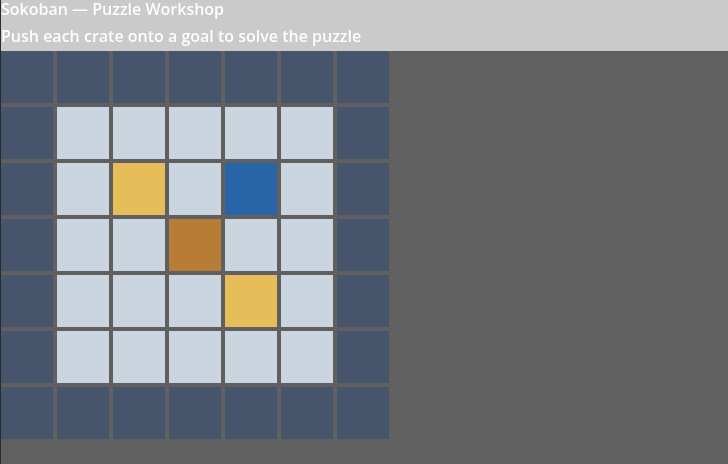
At this point, the player can still step onto wall-coloured cells. That is intentional: we are testing keyboard input and cell movement first. We will add the rule that walls are solid in the next section.
Our movement is now predictable and easy to follow. Next, we will inspect the board layout before accepting a move, so the player cannot walk through walls.
Block Movement Through Walls
We can now move the player around the grid using the arrow keys. However, the blue square can still enter the dark wall cells, which is not how a Sokoban puzzle should work. We will fix this by checking the board data before changing the player position.
Read the Destination Cell
Remember that each # in BOARD represents a wall. Because we already know the coordinates of the player’s proposed destination, we can look up its character and decide whether the move is allowed.
• Open main.gd and find _unhandled_key_input(). Locate the two boundary checks that reject positions outside the board. Immediately after the second boundary check and before player_pos = next_pos, add:
    var destination :String = BOARD[next_pos.y].substr(next_pos.x, 1)
    if destination == "#":
        return
How this code works:
• BOARD[next_pos.y] gets the text row containing the proposed destination. substr(next_pos.x, 1) reads the character in the destination column.
• If that character is #, the function returns without updating player_pos. Because draw_board() is not called, the player stays in the original cell.
We check the board boundaries first, then read the character. This order prevents us from trying to access a row or column that does not exist.
Check the Wall Rule
• Press Ctrl+S and F5. Move the player toward the outer wall using the arrow keys. The blue square should stop on the floor cell beside the wall. Repeatedly pressing the same arrow should leave the player in place.
• Try moving away from the wall and across ordinary floor cells. These moves should still work. The player should also be able to enter a gold goal cell because a goal is not an obstacle.
If the player still enters a wall, check that the wall character is #, that the destination lookup uses y for the row and x for the column, and that the wall check appears before player_pos = next_pos.
Understand What Happens at a Crate
Our board also contains a crate marked with $. At this stage, we have not implemented pushing or crate collisions, so the player can still enter the crate’s cell. We will add the crate-pushing rules in the next section. Separating these features makes it easier to understand and test each rule.
We now have cell-by-cell movement that respects the walls. This is the first important movement restriction in our Sokoban game, and it gives us a reliable foundation for pushing crates next.
Push Crates and Reject Invalid Pushes
With the previous part in place, we can now let the player push a crate only when the next cell is free. This gives us the central Sokoban challenge and prepares us for the next feature.
Separate the Puzzle Rules from the Display
We have been storing the board and drawing it in main.gd. We will now give the puzzle rules their own script, board_model.gd. This is useful because the same rules can be used with several levels and a different interface later. We will keep the Main scene, Interface, Instructions and BoardGrid that you have already created.
• In the FileSystem panel, open res://scripts. Create a new script named board_model.gd, with RefCounted as its base type.
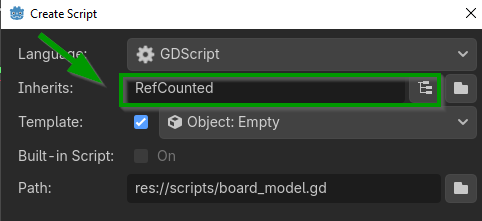
• Replace its default contents with the complete code below. This code establishes the board representation and the pushing rules. We will add undo and completion methods in the following sections.
extends RefCounted
class_name SokobanBoard

var width: int = 0
var height: int = 0
var walls: Dictionary = {}
var goals: Dictionary = {}
var crates: Dictionary = {}
var player: Vector2i = Vector2i.ZERO
var moves: int = 0
var pushes: int = 0
var history: Array[Dictionary] = []
How this code works:
• extends RefCounted means that our script inherits from Godot's RefCounted class. We can use it to store and manage the puzzle's information without adding it to the scene tree.
• class_name SokobanBoard gives our class a name that we can use from other scripts. For example, SokobanBoard.new() creates a new board object.
• width and height store the number of columns and rows in our puzzle. Both start at 0 and will be updated when we load a level.
• walls, goals and crates are dictionaries that store the positions of the walls, goals and crates. A dictionary stores information using keys and values. We will use grid positions as keys, making it easy to check whether a particular cell contains a wall, goal or crate. The {} symbol creates an empty dictionary.
• player stores the player's current position on the board. We use Vector2i because our puzzle uses whole-number grid coordinates rather than pixel positions. Vector2i.ZERO sets the initial position to (0, 0).
• moves counts how many successful moves the player makes, while pushes counts how many times the player pushes a crate. Both start at 0. Keeping these values separate will allow us to display the player's progress.
• – history is an array that will store previous board states. Array[Dictionary] means that each entry is a dictionary. We will use this information to restore the player's previous position and crate arrangement when the player presses Undo. The [] symbol creates an empty array.
Our SokobanBoard class can now hold all the information needed to describe a Sokoban puzzle. We still need to add functions to load a level, move the player, push crates and undo moves.
• Add this function:
func load_rows(rows: Array) -> bool:
    walls.clear()
goals.clear()
crates.clear()
history.clear()
moves = 0
pushes = 0
if rows.is_empty():
return false
height = rows.size()
width = str(rows[0]).length()
var player_count := 0
for y in range(height):
var row := str(rows[y])
if row.length() != width:
return false
for x in range(width): var point := Vector2i(x, y)
match row.substr(x, 1):
"#": walls[point] = true
"G": goals[point] = true
"C": crates[point] = true
"P":
player = point
player_count += 1
"*":
goals[point] = true
crates[point] = true
"+":
goals[point] = true
player = point
player_count += 1 ".": pass
_: return false
return player_count == 1 and crates.size() == goals.size() and not goals.is_empty()
How this code works:
• func load_rows(rows: Array) -> bool: defines a function called load_rows() that receives an array of text rows representing our level. The -> bool means that the function returns either true if the level is valid or false if something is wrong.
• walls.clear(), goals.clear() and crates.clear() empty the dictionaries containing the walls, goals and crates. This ensures that objects from a previously loaded level do not remain on our new board.
• history.clear() removes any previously saved moves, while moves = 0 and pushes = 0 reset the counters. Each new level therefore starts with a clean history and no recorded moves or pushes.
• if rows.is_empty(): checks whether the array contains any rows. If it is empty, return false stops the function because we cannot create a puzzle without a board.
• height = rows.size() stores the number of rows in our level. width = str(rows[0]).length() calculates the number of columns by counting the characters in the first row. The str() function converts the row into text.
• var player_count := 0 creates a variable to count how many player starting positions we find. A valid Sokoban level must contain exactly one player.
• for y in range(height): visits each row of the board. The variable y represents its vertical position, starting at 0.
• var row := str(rows[y]) retrieves the current row and converts it into text. We can then examine its characters individually.
• if row.length() != width: checks whether the current row has the same number of characters as the first row. If the lengths are different, return false stops the function. This ensures that our board is rectangular.
• for x in range(width): visits every column in the current row. Together, the two loops allow us to examine every cell on the board.
• var point := Vector2i(x, y) creates a grid position using the current column (x) and row (y). For example, Vector2i(3, 2) represents column 3, row 2.
• match row.substr(x, 1): examines the character at the current position. The substr(x, 1) function extracts one character, and match selects the appropriate action depending on that character.
• "#": walls[point] = true identifies a wall and stores its position in the walls dictionary. We can later check this dictionary to prevent the player from walking through walls.
• "G": goals[point] = true identifies a goal cell and stores its position in the goals dictionary. The player must eventually push a crate onto every goal to complete the puzzle.
• "C": crates[point] = true identifies a crate and stores its position in the crates dictionary. These are the objects that the player will push around the board.
• "P": identifies the player's starting position. player = point stores that position, while player_count += 1 increases the player counter by one.
• "*": represents a crate already sitting on a goal. We add the same position to both goals and crates because the cell contains both objects.
• "+": represents the player standing on a goal. We store the position in goals, set player to that position and increase player_count by one.
• ".": pass represents an empty floor cell. The pass instruction means that no action is needed because we do not have to store ordinary floor positions.
• _: return false handles any character that does not match the symbols we recognise. The underscore (_) acts as a default case. If the level contains an unknown symbol, the function returns false.
• return player_count == 1 and crates.size() == goals.size() and not goals.is_empty() performs our final checks. It returns true only if the board contains exactly one player, the number of crates matches the number of goals, and there is at least one goal. If any of these conditions is not met, it returns false.
Our load_rows() function can now read a level row by row and identify its walls, goals, crates and player position. It also checks that the board has a consistent shape and contains the basic elements needed for a Sokoban puzzle
• Add these functions:
func inside(point: Vector2i) -> bool:
    return point.x >= 0 and point.y >= 0 and point.x < width and point.y < height

func attempt_move(direction: Vector2i) -> bool:
    if abs(direction.x) + abs(direction.y) != 1:
        return false
    var target := player + direction
    if not inside(target) or walls.has(target):
        return false
    var pushing := crates.has(target)
    var beyond := target + direction
if pushing and (not inside(beyond) or walls.has(beyond) or crates.has(beyond)):
return false
history.append({"player": player, "crates": crates.duplicate(), "moves": moves, "pushes": pushes})
if pushing:
crates.erase(target)
crates[beyond] = true
pushes += 1
player = target
moves += 1
return true
How this code works:
• inside(point) checks whether a position is within the board. It returns true if the coordinates are between 0 and the board's width and height limits, or false otherwise.
• attempt_move(direction) tries to move the player one cell in the chosen direction. It returns true if the move succeeds and false if it is blocked.
• if abs(direction.x) + abs(direction.y) != 1: ensures that the player moves exactly one cell horizontally or vertically. Diagonal movements and larger steps are rejected.
• var target := player + direction calculates the cell the player wants to enter. If this cell is outside the board or contains a wall, the function stops.
• var pushing := crates.has(target) checks whether the target cell contains a crate. var beyond := target + direction calculates the cell immediately behind that crate.
• if pushing and (…) checks whether the crate can be pushed. The move is rejected if the cell behind the crate is outside the board, contains a wall or already contains another crate.
• history.append(…) saves the current player position, crate positions and counters before moving. We use crates.duplicate() to save a separate copy of the crate positions, which we can restore later using Undo.
• if pushing: moves the crate when necessary. crates.erase(target) removes it from its previous position, crates[beyond] = true places it in the next cell, and pushes += 1 increases the push counter.
• player = target updates the player's position, while moves += 1 increases the move counter. Finally, return true confirms that the movement was successful.
Our player can now move around the board and push crates, but only when the next cell is available. Invalid moves are rejected, and every successful move is saved so that we can undo it later.
.
Connect the Model to the Existing Main Scene
• Open res://scripts/main.gd. Remove (e.g., comment) the previous BOARD constant, player_pos and crate_positions variables, and the earlier read_starting_positions() and movement logic. Keep the existing draw_board() function for the moment; we will replace it with a model-based version below. Near the top of main.gd, add:
const SokobanBoardScript = preload("res://scripts/board_model.gd")
var model = SokobanBoardScript.new()
preload() locates the board script, and new() creates an independent board model for the current game.
• Replace the existing _ready() function with the following code. This first layout uses the same seven-by-seven board introduced earlier, but in the final project’s notation:
func _ready() -> void:
    var rows: Array = [
        "#######",
        "#.....#",
        "#..G..#",
        "#..C..#",
        "#..P..#",
        "#.....#",
        "#######"
    ]
    if not model.load_rows(rows):
        push_error("Invalid first level")
        return
    draw_board()
load_rows() builds the walls, crates, goals and player positions from the text rows. If the layout is invalid, the function returns false rather than trying to display a broken board.
• Replace draw_board() with the following complete function. It uses the BoardGrid node that you created earlier:
func draw_board() -> void:
    var grid: GridContainer = $Interface/BoardPanel/BoardGrid
    grid.columns = model.width
    for child in grid.get_children():
        grid.remove_child(child)
        child.queue_free()
    for y in range(model.height):
        for x in range(model.width):
            var point := Vector2i(x, y)
            var cell := ColorRect.new()
            cell.custom_minimum_size = Vector2(62, 62)
            cell.color = Color("334155") if model.walls.has(point) else Color("263548")
            if model.goals.has(point):
                cell.color = Color("176b69")
            if model.crates.has(point):
cell.color = Color("158f72") if model.goals.has(point) else Color("b77c35")
if model.player == point:
cell.color = Color("2764a8")
grid.add_child(cell)The nested loops visit each coordinate and create one coloured cell. Walls are grey, floors dark, goals teal, crates brown (green when on a goal), and the player blue. The grid columns match the loaded board width.
• Replace _unhandled_key_input() with this version:
func _unhandled_key_input(event: InputEvent) -> void:
    if not event is InputEventKey or not event.pressed or event.echo:
        return
    var direction := Vector2i.ZERO
    if event.keycode == KEY_UP or event.keycode == KEY_W:
        direction = Vector2i.UP
    elif event.keycode == KEY_DOWN or event.keycode == KEY_S:
        direction = Vector2i.DOWN
    elif event.keycode == KEY_LEFT or event.keycode == KEY_A:
        direction = Vector2i.LEFT
    elif event.keycode == KEY_RIGHT or event.keycode == KEY_D:
        direction = Vector2i.RIGHT
    if direction != Vector2i.ZERO and model.attempt_move(direction):
        draw_board()
The keyboard event becomes a Vector2i direction. We ask the model to attempt the move and redraw only when it succeeds. The input handler does not need to know how a push is validated.
Check Legal and Blocked Pushes
• Save both scripts and press F5 to run the project. Move up from the starting position: the blue player should push the brown crate upward by one cell. Continue pushing it toward the upper wall; it should stop when the cell beyond the crate is blocked.
• Walk around the board and try pushing the crate from different sides. Check that neither the player nor the crate can pass through the outer walls. If the board does not appear, check the Main scene node paths and the Output panel.
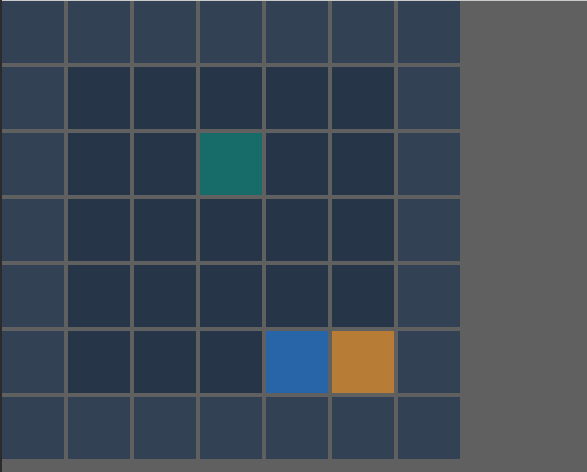
We now have the central Sokoban challenge. Try the feature in the editor and check that it behaves as expected before moving on. In the next section, we will recognise when all crates occupy goal cells.
Detect When Every Crate Reaches a Goal
With the previous part in place, we can now recognise when all crates occupy goal cells. This gives us a clear condition for solving a level and prepares us for the next feature.
Check Goals Separately from Crates
The model stores goals and crates in separate dictionaries. This matters because a goal still exists underneath a crate. We can therefore check the puzzle without reading colours from the screen.
• Open board_model.gd. After attempt_move(), add the following function:
func is_solved() -> bool:
    for goal in goals:
        if not crates.has(goal):
            return false
    return not goals.is_empty()
The function visits each goal and checks whether a crate occupies the same coordinate. If even one goal is empty, it returns false. The final line also rejects a board with no goals.
Show Completion in the Existing Interface
• In main.gd, add the following function after draw_board():
func check_level_complete() -> void:
    if model.is_solved():
        $Interface/Instructions.text = "Level complete! Every crate is on a goal."
    else:
        $Interface/Instructions.text = "Push each crate onto a goal to solve the puzzle."
We update the Instructions label only from the model’s solved state. This keeps the message accurate even when a crate is moved off a goal.
• In _unhandled_key_input(), immediately after draw_board() inside the successful-move branch, add:
check_level_complete()The completion check runs only after a legal move has changed the board.
Test the Completion Condition
• Press Ctrl+S and F5. Push the crate onto the goal marked by the teal cell. The crate should become green and the Instructions label should display the completion message.
• Move the crate away from the goal and check that the instruction text returns to its normal message. We will add a dedicated completion screen in the next section of the chapter.
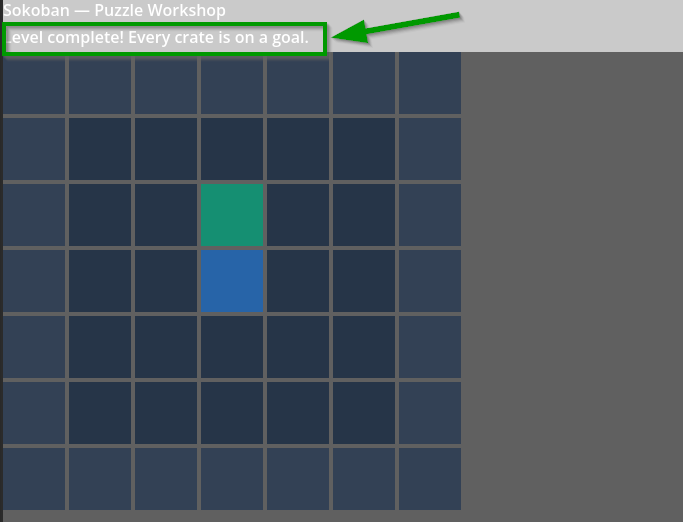
We now have a clear condition for solving a level. Try the feature in the editor and check that it behaves as expected before moving on. In the next section, we will remember previous moves so the player can undo a push.
Record Moves and Undo a Push
With the previous part in place, we can now remember previous moves so the player can undo a push. This gives us a forgiving way to experiment with solutions and prepares us for the next feature.
Restore the Previous Board State
Before every accepted move, attempt_move() already saves a snapshot of the player position, crate positions and counters in history. We will now use those snapshots to undo both walking and pushing.
• In board_model.gd, directly after attempt_move() and before is_solved(), add the following function:
func undo() -> bool:
    if history.is_empty():
        return false
    var snapshot: Dictionary = history.pop_back()
    player = snapshot["player"]
    crates = snapshot["crates"].duplicate()
    moves = snapshot["moves"]
    pushes = snapshot["pushes"]
    return true
is_empty() prevents undo when no move has been recorded. pop_back() removes the most recent snapshot. We restore the player, a duplicate of the crate dictionary, and the two counters. A rejected move does not enter the history because attempt_move() returns before appending a snapshot.
Connect Undo to the Keyboard
• In main.gd, add this function after check_level_complete():
func undo_move() -> void:
    if model.undo():
        draw_board()
        check_level_complete()
The board is redrawn only when the model successfully restores an earlier state. The completion message is checked again, so undo can also reverse a solved position.
• In _unhandled_key_input(), immediately after the initial InputEventKey check and before var direction, add:
    if event.keycode == KEY_Z:
        undo_move()
        return
The Z shortcut is handled before directional movement, so it does not accidentally trigger a normal move.
Check the History
• Press F5. Walk one cell, push the crate and press Z. The crate and player should return to their previous positions. Press Z again to undo the earlier walking move.
• Try pushing the crate into a wall, then press Z. The blocked attempt must not add a history entry. If the previous legal move is still available, that is the one that should be undone.
We now have a forgiving way to experiment with solutions. Try the feature in the editor and check that it behaves as expected before moving on. In the next section, we will restart a level and load new layouts from authored JSON data.
Restart and Load Authored JSON Puzzle Levels
With the previous part in place, we can now restart a level and load new layouts from authored JSON data. This gives us a game that can offer more than one puzzle and prepares us for the next feature.
Create Authored Puzzle Data
We can now store puzzle layouts outside the script. We can store named puzzle layouts in a JSON file, with an array of text rows for each level. We will create three layouts using the same board symbols.
• In the FileSystem panel, create a folder called data at the project root. Using a plain-text editor, create res://data/levels.json and enter the following complete contents:
[
 {"name":"First Push","rows":["#######","#.....#","#..G..#","#..C..#","#..P..#","#.....#","#######"]},
 {"name":"Around the Wall","rows":["########","#......#","#..G...#","#..C#..#","#..P...#","#......#","#......#","########"]},
 {"name":"Two Deliveries","rows":["########","#......#","#..GG..#","#..CC..#","#..P...#","#......#","#......#","########"]}
]
Each JSON entry has a name and rows. The #, ., G, C and P characters mean wall, floor, goal, crate and player. Keep the punctuation and row lengths unchanged. The three layouts are First Push, Around the Wall and Two Deliveries.
Load the First Puzzle from JSON
• At the top of main.gd, alongside the board script preload, add:
const LEVELS_PATH := "res://data/levels.json"
var levels: Array = []
var level_index := 0
LEVELS_PATH identifies the resource, levels holds the parsed entries, and level_index identifies the active puzzle.
• Replace _ready() with the following code:
func _ready() -> void:
    var file := FileAccess.open(LEVELS_PATH, FileAccess.READ)
    if file == null:
        push_error("Missing level data")
        return
    var parsed = JSON.parse_string(file.get_as_text())
    if not (parsed is Array) or parsed.is_empty():
        push_error("Invalid level data")
        return
    levels = parsed
    load_level(0)
FileAccess reads the file and JSON.parse_string() converts its contents to an array. We check for a missing or invalid file before loading the first level.
• Add the following new function to main.gd:
func load_level(index: int) -> void:
    if index < 0 or index >= levels.size():
        return
    var entry = levels[index]
    if not (entry is Dictionary) or not entry.has("rows"):
        push_error("Level is missing rows")
        return
    if not (entry["rows"] is Array) or not model.load_rows(entry["rows"]):
        push_error("Invalid level layout")
        return
    level_index = index
    draw_board()
    check_level_complete()
The loader checks the level index and row data, then asks the board model to parse the selected layout. load_rows() resets positions, moves, pushes and undo history, so the new puzzle starts cleanly.
Restart and Try Another Authored Level
• Add these functions to main.gd:
func restart_level() -> void:
    load_level(level_index)

func next_level() -> void:
    if not levels.is_empty():
        load_level((level_index + 1) % levels.size())
Restart loads the current entry again. The temporary next_level() helper cycles through the authored levels; we will create the level-selection interface in the next section.
• In _unhandled_key_input(), after the Z shortcut and before var direction, add:
    if event.keycode == KEY_R:
        restart_level()
        return
    if event.keycode == KEY_N:
        next_level()
        return
R restarts the current level and N changes to the next level. Both actions reuse the same validated loader.
Test the JSON Levels
• Save the JSON file and main.gd, then press F5. Move the player and press R: the first puzzle should return to its starting arrangement. Press N to display Around the Wall, and press N again to display Two Deliveries with two crates and two goals.
• Move a crate, press Z and check that undo works. Then press R and check that the undo history is empty. If a level fails to load, inspect the Output panel and compare its rows with levels.json.
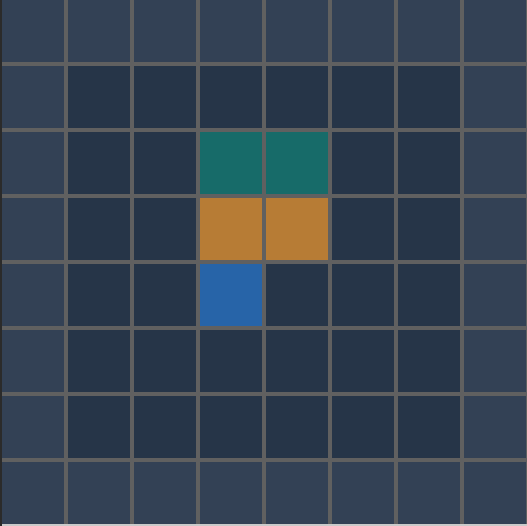
We now have a game that can offer more than one puzzle. Try the feature in the editor and check that it behaves as expected before moving on. In the next section, we will give players a way to choose levels and see completion feedback.
Add Level Selection, Menus and Completion Feedback
With the previous part in place, we can now give players a way to choose levels and see completion feedback. This gives us a more complete experience and prepares us for the next feature.
Plan the Player Interface
The board already loads levels, checks for a solution and supports undo and restart. We will keep those features and add a simple interface above the board. A menu will let players start a puzzle, read the instructions and choose a level. When a puzzle is solved, the game will display the move and push counts and offer a way to continue.
We will build the menu with Control nodes from GDScript. This means you do not need to rebuild the Interface/BoardPanel/BoardGrid scene created earlier. The new overlay is added as a child of the Main Control and appears above the existing board.
• Open res://scripts/main.gd. Immediately below the existing level_index variable, add these variables:
var game_state := "MENU"
var menu_overlay: ColorRect
var menu_stack: VBoxContainer
game_state identifies whether the player is using a menu, selecting a level, playing, paused or viewing a completed puzzle. menu_overlay covers the existing scene while a menu is open, and menu_stack holds its labels and buttons.
Create a Reusable Menu Overlay
• At the end of main.gd, add the following helper functions. They create the interface once, then replace its contents whenever the player changes screens:
func build_menu_overlay() -> void:
    menu_overlay = ColorRect.new()
    menu_overlay.color = Color(0, 0, 0, 0.88)
    menu_overlay.set_anchors_and_offsets_preset(Control.PRESET_FULL_RECT)
    menu_overlay.mouse_filter = Control.MOUSE_FILTER_STOP
    add_child(menu_overlay)

    var center := CenterContainer.new()
    center.set_anchors_and_offsets_preset(Control.PRESET_FULL_RECT)
    menu_overlay.add_child(center)

    var panel := PanelContainer.new()
    panel.custom_minimum_size = Vector2(380, 0)
    center.add_child(panel)

    var margin := MarginContainer.new()
margin.add_theme_constant_override("margin_left", 24)
margin.add_theme_constant_override("margin_right", 24)
margin.add_theme_constant_override("margin_top", 24)
margin.add_theme_constant_override("margin_bottom", 24)
panel.add_child(margin)
menu_stack = VBoxContainer.new()
menu_stack.add_theme_constant_override("separation", 12)
margin.add_child(menu_stack)
In the previous code, we created the main game interface. We now add a menu overlay that appears on top of the game. This overlay will contain the menus and buttons that players use to navigate between screens.
The build_menu_overlay() function creates and organises the different interface elements.
• Create the menu overlay: We first create a ColorRect called menu_overlay. This is a rectangular interface element that covers the game screen.
• Set the background colour: We give the overlay a black colour with an opacity of 0.88. This creates a dark, almost opaque background that helps the menu stand out while leaving the game slightly visible underneath.
• Make the overlay fill the screen: We use PRESET_FULL_RECT to stretch the overlay across its parent control.
• Block mouse interactions with the game: We set mouse_filter to MOUSE_FILTER_STOP. This prevents mouse clicks on the overlay from passing through to the game underneath.
• Add the overlay to the scene: We use add_child() to attach the overlay to the current node so that it becomes part of the interface.
• Create a centred container: We create a CenterContainer that fills the overlay. This container automatically positions its contents in the centre of the available space.
• Create the menu panel: We add a PanelContainer inside the centred container. This provides a visual panel for the menu, with a minimum width of 380 pixels.
• Add margins around the menu contents: We create a MarginContainer and set its left, right, top and bottom margins to 24 pixels. This ensures that the menu contents do not touch the edges of the panel.
• Arrange the menu elements vertically: Finally, we create a VBoxContainer called menu_stack. This container will hold the menu elements, such as titles and buttons, arranged vertically.
• Set the spacing between elements: We set the separation to 12 pixels so that each menu element has some space around it.
At this stage, we have created the structure of our menu, but we have not added any buttons or labels yet. The next step is to populate menu_stack with the elements needed for our different menus.
• Add these functions:
func open_menu(title: String, message: String) -> void:
    menu_overlay.show()
    for child in menu_stack.get_children():
        menu_stack.remove_child(child)
        child.queue_free()
add_menu_text(title, 26)
add_menu_text(message, 16)
func add_menu_text(message: String, size: int) -> void:
var label := Label.new()
label.text = message
label.horizontal_alignment = HORIZONTAL_ALIGNMENT_CENTER
label.autowrap_mode = TextServer.AUTOWRAP_WORD_SMART
label.add_theme_font_size_override("font_size", size)
menu_stack.add_child(label)
func add_menu_button(caption: String, action: Callable) -> void:
var button := Button.new()
button.text = caption button.custom_minimum_size = Vector2(260, 42)
button.pressed.connect(action)
menu_stack.add_child(button)In the previous code, we created the menu overlay and the containers needed to organise its contents. We will now add three functions that allow us to open a menu, display text and create interactive buttons.
How this code works:
• Open a menu: The open_menu() function receives two pieces of text: a title and a message. These will be displayed inside the menu.
• Display the overlay: We use menu_overlay.show() to make the menu visible on the screen.
• Remove previous menu elements: We loop through the existing children of menu_stack, remove each one from the container and schedule it for deletion. This ensures that the new menu does not contain buttons or labels from the previous menu.
• Add the title and message: We call add_menu_text() twice: first to display the title using a font size of 26, and then to display the message using a smaller font size of 16.
• Create a text label: The add_menu_text() function creates a new Label and assigns the supplied message to it.
• Centre and wrap the text: We centre the text horizontally and enable automatic word wrapping. This allows longer messages to continue on a new line rather than extending beyond the menu panel.
• Set the font size: We use add_theme_font_size_override() to apply the specified font size, allowing us to display titles and messages differently.
• Add the label to the menu: We add the new label to menu_stack, where it is automatically arranged with the other menu elements.
• Create a menu button: The add_menu_button() function receives a caption for the button and an action to perform when it is clicked. The Callable type represents a function that can be called later.
• Set the button's appearance: We assign the caption to the button and give it a minimum width of 260 pixels and a minimum height of 42 pixels.
• Connect the button to an action: We connect the button's pressed signal to the supplied action. This means that clicking the button will automatically execute the associated function.
• Add the button to the menu: Finally, we add the button to menu_stack, where it appears below the existing menu elements.
We can now create different menus using the same functions, without having to rebuild their interface each time. We simply provide a title, a message and the buttons needed for each menu
• In _ready(), keep the JSON-reading code and load_level(0). Immediately after load_level(0), add:
    build_menu_overlay()
    show_main_menu()
The first level is prepared in the background, but the menu is displayed when the game starts. Make sure the new calls are indented inside _ready(), at the same level as load_level(0).
Add the Main Menu and Instructions
• Add these functions below the menu helpers in main.gd:
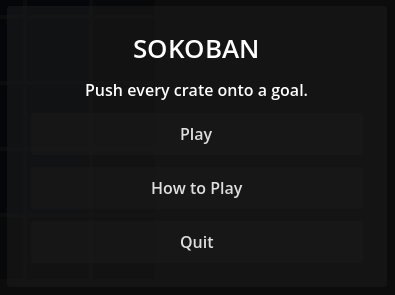
func show_main_menu() -> void:
    game_state = "MENU"
    open_menu("SOKOBAN", "Push every crate onto a goal.")
    add_menu_button("Play", show_level_selection)
    add_menu_button("How to Play", show_help)
    add_menu_button("Quit", quit_game)


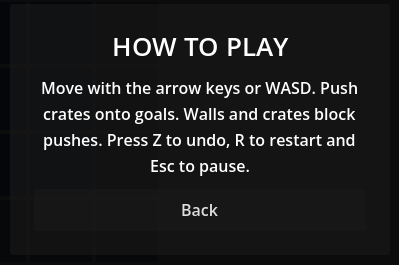
func show_help() -> void:
    game_state = "HELP"
    open_menu("HOW TO PLAY",
        "Move with the arrow keys or WASD. " +
        "Push crates onto goals. Walls and crates block pushes. " +
        "Press Z to undo, R to restart and Esc to pause.")
    add_menu_button("Back", show_main_menu)
func quit_game() -> void:
    get_tree().quit()
Play will open the level list rather than starting an arbitrary puzzle. How to Play explains the controls already introduced in the chapter. Quit closes the running game; when testing from the editor, you can also stop the project with F8.
Build the Level-Selection Screen
• Add the following functions to main.gd:
func show_level_selection() -> void:
    game_state = "SELECT"
    open_menu("SELECT A LEVEL", "Choose a puzzle to play.")
    for index in range(levels.size()):
        var level_name := str(levels[index].get("name", "Puzzle"))
        var caption := "%d - %s" % [index + 1, level_name]
        add_menu_button(caption, start_selected_level.bind(index))
    add_menu_button("Main Menu", show_main_menu)


func start_selected_level(index: int) -> void:
    if index < 0 or index >= levels.size():
        return
    load_level(index)
    game_state = "PLAYING"
    menu_overlay.hide()
The level names come from res://data/levels.json, which we created in the previous section. The loop creates one button for each JSON entry. bind(index) attaches the correct level number to the button callback. When a level is selected, load_level() resets the board and undo history, and the overlay disappears.
This approach scales naturally: adding another valid entry to levels.json will add another selection button without changing the menu code. For a larger game, you could later place these buttons inside a ScrollContainer.
Show Completion Feedback and Navigation
• Add these functions to main.gd:
func show_completion() -> void:
    game_state = "COMPLETE"
    open_menu("PUZZLE SOLVED!",
        "Completed in %d moves and %d pushes." % [
            model.moves, model.pushes])
    if level_index + 1 < levels.size():
        add_menu_button("Next Level",
            start_selected_level.bind(level_index + 1))
    add_menu_button("Play Again", play_again)
    add_menu_button("Level Select", show_level_selection)
    add_menu_button("Main Menu", show_main_menu)


func play_again() -> void:
    start_selected_level(level_index)
func show_pause_menu() -> void:
    game_state = "PAUSED"
    open_menu("PAUSED", "Your puzzle is ready when you are.")
    add_menu_button("Resume", resume_game)
    add_menu_button("Restart", play_again)
    add_menu_button("Level Select", show_level_selection)
    add_menu_button("Main Menu", show_main_menu)


func resume_game() -> void:
    game_state = "PLAYING"
    menu_overlay.hide()
When all goals contain crates, the completion panel reports the counts stored by the board model. Next Level appears only if another authored level exists. Play Again reloads the current layout, and Level Select returns to the list. The pause menu offers a way to leave a puzzle without losing access to the other screens.
We are using game_state to prevent movement while an overlay is visible, rather than pausing the entire SceneTree. This keeps the menu buttons responsive and avoids needing to change node process modes.
Connect Keyboard Input to the New Screens
• Replace the entire existing _unhandled_key_input() function in main.gd with the following. Keep the undo_move(), restart_level() and other functions created in previous sections:
func _unhandled_key_input(event: InputEvent) -> void:
    if not event is InputEventKey or not event.pressed or event.echo:
        return

    if event.keycode == KEY_ESCAPE:
        if game_state == "PLAYING":
            show_pause_menu()
        elif game_state == "PAUSED":
            resume_game()
        return

    if game_state != "PLAYING":
        return

    if event.keycode == KEY_Z:
        undo_move()
return
if event.keycode == KEY_R:
play_again()
return
var direction := Vector2i.ZERO
if event.keycode == KEY_UP or event.keycode == KEY_W:
direction = Vector2i.UP
elif event.keycode == KEY_DOWN or event.keycode == KEY_S:
direction = Vector2i.DOWN
elif event.keycode == KEY_LEFT or event.keycode == KEY_A:
direction = Vector2i.LEFT
elif event.keycode == KEY_RIGHT or event.keycode == KEY_D:
direction = Vector2i.RIGHT
if direction != Vector2i.ZERO and model.attempt_move(direction): draw_board()
check_level_complete()
if model.is_solved():
show_completion()Escape opens and closes the pause screen. When game_state is not PLAYING, the function ignores movement and undo keys, so the player cannot move the character behind an open menu. Z still calls the undo helper from the previous section, and R now restarts through play_again(). The temporary N shortcut is no longer needed because players can choose levels through the menu.
After a legal move, the board is redrawn and the completion condition is checked. If every crate is on a goal, show_completion() opens the result panel. Because the state changes to COMPLETE, additional movement is blocked until the player chooses another action.
Test the Complete Player Flow
• Save main.gd and press F5 to run the project. The SOKOBAN main menu should appear. Choose How to Play, then Back, then Play. Check that the level-selection screen shows all three names from levels.json.
• Select First Push.
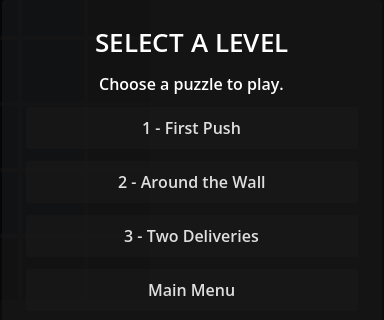
• Move the player using the arrow keys or WASD. Press Z to undo and R to restart. Press Escape to open the pause menu, then Resume to return to the same board. Choose Level Select to change to Around the Wall and confirm that the new layout appears.
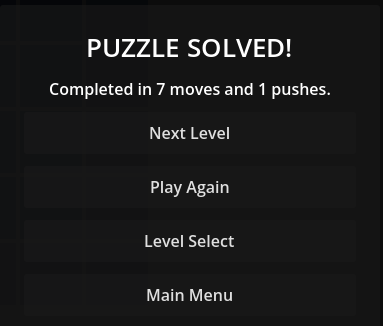
• Return to First Push. Push the crate onto its goal. The PUZZLE SOLVED! panel should appear with the move and push counts. Choose Play Again to reset the level, then solve it once more and choose Next Level. Finally, select Two Deliveries and confirm that the last level does not offer a Next Level button after completion.
• If a button does not respond, check the function name passed to add_menu_button() and confirm that build_menu_overlay() runs before show_main_menu(). If movement continues while a menu is open, confirm that _unhandled_key_input() checks game_state before processing movement keys.
We now have a complete route through the Sokoban game: start at the main menu, choose a puzzle, play, undo or restart, pause when needed, and continue after solving a level. The rules still belong to the board model, while main.gd manages what the player sees and how the screens connect.
At this stage, the main features of the game should be in place. Take a moment to try them together and check that they behave as expected. In the chapter summary, we will review what we have created and the ideas you can reuse in your own projects.
Chapter Summary — What You Built and Learned
This chapter guided you through the creation of a Sokoban-style puzzle game in Godot 4.7. You started with a grid and learned how to represent walls, floor cells, crates and goals as a board model.
You implemented cell-by-cell player movement and checked whether each move was legal before changing the board. You also handled crate pushing, including the rule that a crate cannot move into a wall or another crate.
You then added a way to detect when all crates occupy goal cells. Undo and restart controls made it possible to recover from mistakes and experiment with different solutions.
The chapter also introduced authored level layouts stored in JSON. By loading levels from data, you can build more puzzles without rewriting the underlying movement logic.
Menus, level selection and completion feedback connected the game rules to the player experience. These features helped turn a collection of mechanics into a complete playable puzzle.
One of the most useful lessons is to keep the board's state separate from its appearance. This makes it easier to test movement, undo changes and decide when a puzzle is solved.
You can now use these ideas in other grid-based games, or extend your Sokoban project with additional puzzle layouts and more advanced challenges.
Chapter Quiz — Check Your Knowledge
Please guess whether the following statements are True or False. You can check your answers in the next section.
• Q1. A Sokoban puzzle is solved when every crate is positioned on a goal.
• Q2. The player can move through walls if no crate is in the way.
• Q3. A crate can be pushed only if the cell beyond it is free.
• Q4. A Sokoban crate can always be pulled back after a bad push.
• Q5. Keeping the board state in data makes it easier to validate movement.
• Q6. Undo should restore the previous positions of the player and any moved crate.
• Q7. Restart should preserve every move made during the current attempt.
• Q8. A JSON level file can store an authored board layout.
• Q9. The game should check whether a push is legal before updating the board.
• Q10. A completed-level message should appear even when some crates are not on goals.
Answers
• Q1: True. The level is complete only when the required crates occupy their goals.
• Q2: False. Walls block movement.
• Q3: True. The space beyond a crate must be available before pushing.
• Q4: False. The baseline mechanic pushes crates; it does not allow pulling them.
• Q5: True. Board data lets the game inspect and update cell contents.
• Q6: True. Undo restores the previous board state.
• Q7: False. Restart returns the level to its initial state.
• Q8: True. JSON can describe a saved level layout.
• Q9: True. Illegal pushes must be rejected before movement is applied.
• Q10: False. All required goals must be satisfied before showing completion.
Chapter Challenge — Extend the Project
You can now experiment with your Sokoban project.
Try extending the game by:
• Create a new Sokoban level with at least two crates and matching goals.
• Arrange walls so the level requires planning but still has a valid solution.
• Add the level to the existing authored-level data and select it from the game menu.
• Test invalid pushes, undo, restart, and successful completion.
• For an extra challenge, design a harder level without trapping a required crate in an unsolvable corner.
These experiments will help reinforce the concepts introduced in this chapter and give you more opportunities to practise testing and improving your own game.
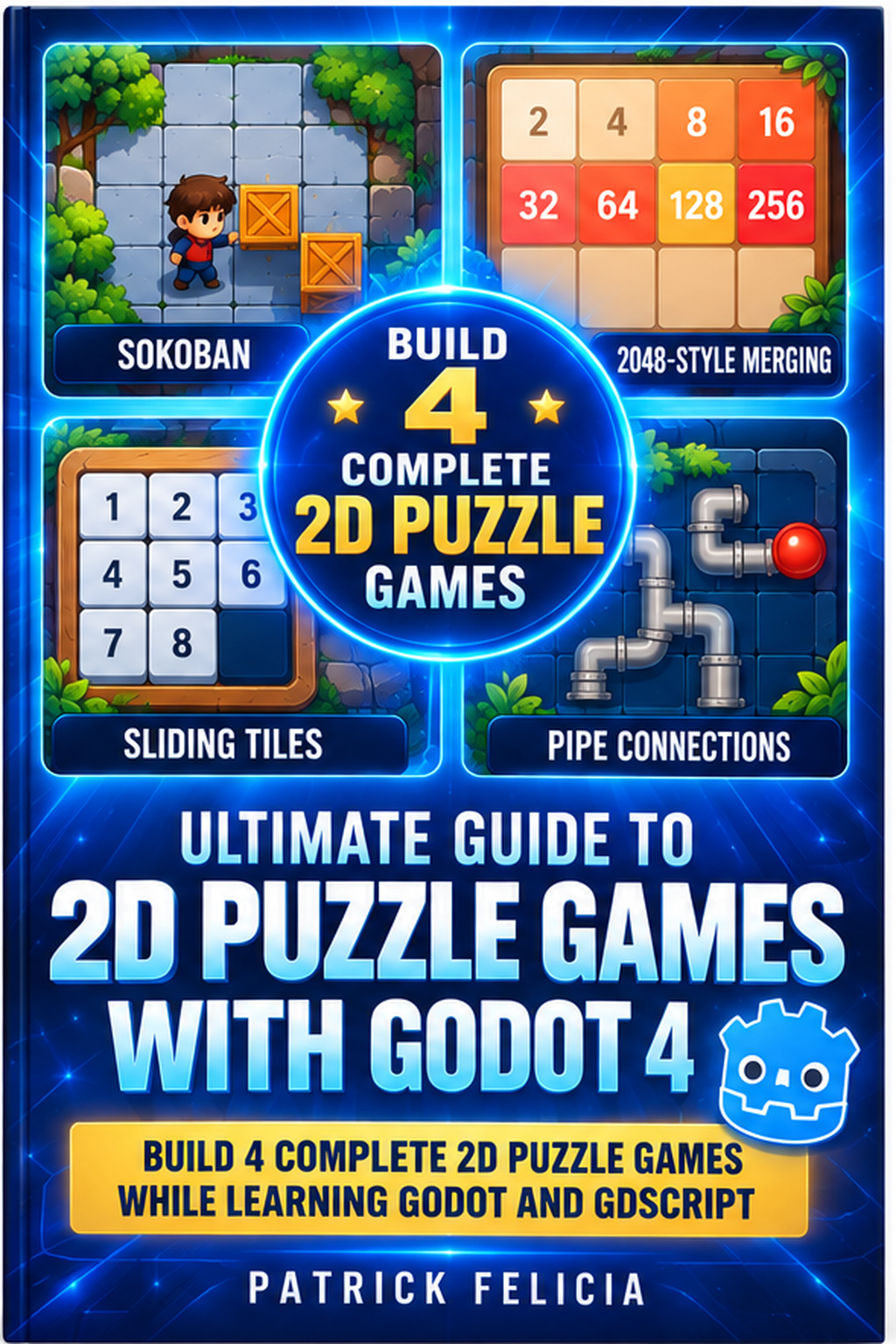
🧩 Enjoyed this tutorial?
Why not take your Godot skills further with The Ultimate Guide to 2D Puzzle Games with Godot? Discover how to build three more puzzle games, with step-by-step instructions, practical examples, and downloadable projects!